Create Perfect E‑Reader Screensavers & Wallpapers
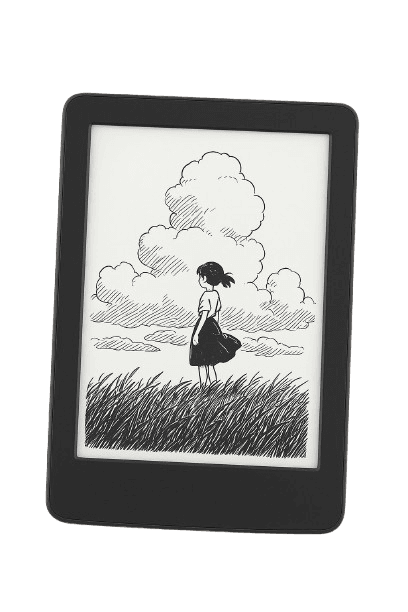
Free online tool to resize and crop images to the exact screen size of 20 Kindle, Kobo, Boox and reMarkable models. No more stretched or cut-off lockscreen pictures — and your images never leave your browser.
- Nothing is uploaded
- Free, no watermark
- No sign-up
Resize an Image for Your E-Reader
Step 1: Select Your Device
Selected device dimensions: 1236 × 1648 pixels
Aspect ratio: 1:1.33
Step 2: Upload Your Image
Drag and drop your image here
or click to browse files
Supports: JPG, PNG, GIF, WebP up to 10MB
Upload an image to start editing
How It Works
Four steps, about two minutes, no account.
- 1
Pick your e-reader
Choose your model from the list, or enter custom pixel dimensions for any device. The crop frame changes to match that screen's exact aspect ratio.
- 2
Upload your image
Drag in a JPG, PNG, GIF or WebP. It is read straight into the browser — nothing is uploaded to a server.
- 3
Crop and position
Zoom and drag until the image sits how you want it inside the frame. The frame is locked to your device's aspect ratio, so nothing gets stretched.
- 4
Download and transfer
Download the resized image at your device's exact resolution, then copy it to your e-reader using the setup guide for your model.
E-Reader Screen Sizes and Resolutions
The exact screensaver size for every supported device. Match these pixel dimensions and your image fills the screen with no stretching, cropping or black bars.
| Device | Screen | Screensaver size | Aspect ratio | PPI |
|---|---|---|---|---|
| Kindle (11th Gen) | 6-inch | 1072 × 1448 px | 1:1.35 | 300 |
| Kindle PW (12th Gen) | 7-inch | 1264 × 1680 px | 1:1.33 | 300 |
| Kindle PW (11th Gen) | 6.8-inch | 1236 × 1648 px | 1:1.33 | 300 |
| Kindle PW (10th Gen & earlier) | 6-inch | 1072 × 1448 px | 1:1.35 | 300 |
| Kindle Oasis (3rd Gen) | 7-inch | 1264 × 1680 px | 1:1.33 | 300 |
| Kindle Scribe | 10.2-inch | 1860 × 2480 px | 1:1.33 | 300 |
| Kindle Colorsoft | 7-inch | 1264 × 1680 px | 1:1.33 | 300 |
| Kobo Nia | 6-inch | 758 × 1024 px | 1:1.35 | 212 |
| Kobo Clara BW | 6-inch | 1072 × 1448 px | 1:1.35 | 300 |
| Kobo Clara 2E / HD | 6-inch | 1072 × 1448 px | 1:1.35 | 300 |
| Kobo Clara Colour | 6-inch | 1072 × 1448 px | 1:1.35 | 300 |
| Kobo Libra 2 / H2O | 7-inch | 1264 × 1680 px | 1:1.33 | 300 |
| Kobo Libra Colour | 7-inch | 1264 × 1680 px | 1:1.33 | 300 |
| Kobo Sage | 8-inch | 1440 × 1920 px | 1:1.33 | 300 |
| Kobo Elipsa 2E | 10.3-inch | 1404 × 1872 px | 1:1.33 | 227 |
| reMarkable 2 | 10.3-inch | 1404 × 1872 px | 1:1.33 | 226 |
| reMarkable Paper Pro | 11.8-inch | 1620 × 2160 px | 1:1.33 | 229 |
| Boox Palma | 6.13-inch | 824 × 1648 px | 1:2 | 300 |
| Boox Page | 7-inch | 1264 × 1680 px | 1:1.33 | 300 |
| Boox Note Air Series | 10.3-inch | 1404 × 1872 px | 1:1.33 | 227 |
| Boox Tab Ultra Series | 10.3-inch | 1404 × 1872 px | 1:1.33 | 227 |
| Nook GlowLight 4 | 6-inch | 1072 × 1448 px | 1:1.35 | 300 |
| Nook GlowLight 4e | 6-inch | 758 × 1024 px | 1:1.35 | 212 |
| PocketBook Era | 7-inch | 1264 × 1680 px | 1:1.33 | 300 |
| PocketBook InkPad 4 / Color 3 | 7.8-inch | 1404 × 1872 px | 1:1.33 | 300 |
Device not listed? Pick Custom Device in the resizer above and enter any pixel dimensions.
Ready to Perfect Your Ebook Images?
Start using our free tool today and ensure your ebook images look professional on every device.
Start Resizing NowFrequently Asked Questions
Kindle devices don't officially support custom screensavers (they usually show ads or the cover of your current book). However, a common workaround involves tricking the Kindle into displaying a book cover that is actually your desired image:
- Use our tool to create your image, ensuring it has the correct dimensions for your Kindle model.
- Convert your resized image file (e.g., PNG) into an EPUB file format, making sure the image itself is embedded as the EPUB's cover. You may need to search online for "image to EPUB cover converter" tools or use specific software like Calibre to achieve this.
- Send the final EPUB file to your Kindle library using Amazon's Send to Kindle service (via email or the web uploader).
- On your Kindle, go to
Settings>Device Optionsand ensure "Display Cover" (or similar wording) is turned ON. This setting shows the current book's cover on the lock screen. - Sync your Kindle to receive the new EPUB file.
- Open the new EPUB "book" in your Kindle library (it will look like your image).
- Leave this "book" open and put your Kindle to sleep. The lock screen should now display your custom image.
Note: This is a community workaround, not an official feature. Its effectiveness may vary depending on Kindle model, firmware updates, and the specific tools used for EPUB conversion.
Adding custom screensavers to Kobo devices involves connecting it to a computer:
- Connect your Kobo to your computer via USB and tap "Connect" on the Kobo screen when prompted.
- Open the Kobo drive on your computer (it appears like a USB drive).
- Navigate into the
.kobofolder. (You might need to enable "Show hidden files" on your computer first). - Inside the
.kobofolder, create a new folder named exactlyscreensaver. - Copy the image file(s) you downloaded from our tool into this new
screensaverfolder. - Safely eject the Kobo drive from your computer.
- On your Kobo device, go to
Settings>Energy saving and privacy. - Make sure the options "Show current read" and "Show book covers full screen" are both checked (enabled).
- Put your Kobo to sleep, and your custom image should appear!
KOReader makes it easy to set up custom screensavers. Follow these steps:
- Connect your e-reader device to your computer via USB cable
- Navigate to the
.adds/koreaderfolder on your device - Create a new folder (e.g.,
screensaver) to store your images - Copy your desired screensaver images into this folder
- Safely eject your device from the computer
- On your device, open KOReader and follow these steps:
- Tap the gear icon (Settings) in the top menu
- Select Screen
- Choose Sleep screen
- Select Wallpaper
- Choose whether you want to show a single custom image or random images from your folder
- Tap on Custom image setting and select image or document folder or random image folder
- Navigate to your created folder (
.adds/koreader/screensaver) and select it
Note: The exact menu names might vary slightly depending on your KOReader version, but the general process remains the same.
No. All cropping and resizing happens locally in your browser using the HTML canvas API. Your images are never transmitted to or stored on our servers, and no account is required.
Nothing is retained after you close the tab. Because the work happens on your device, the tool keeps working even if you go offline once the page has loaded — and large files process instantly, since there is no upload or download round trip.
- This tool allows you to easily resize and position images for your e-reader device. You can select from popular e-readers like Kindle, Kobo, or Remarkable, upload your image, and then adjust it to fit perfectly on your device's screen. The tool maintains the proper aspect ratio and dimensions for each specific device.
E-readers have specific screen dimensions and aspect ratios. Using properly sized images ensures they display correctly without stretching, cropping, or unnecessary black borders. This is especially important for cover images, wallpapers, and screensavers.